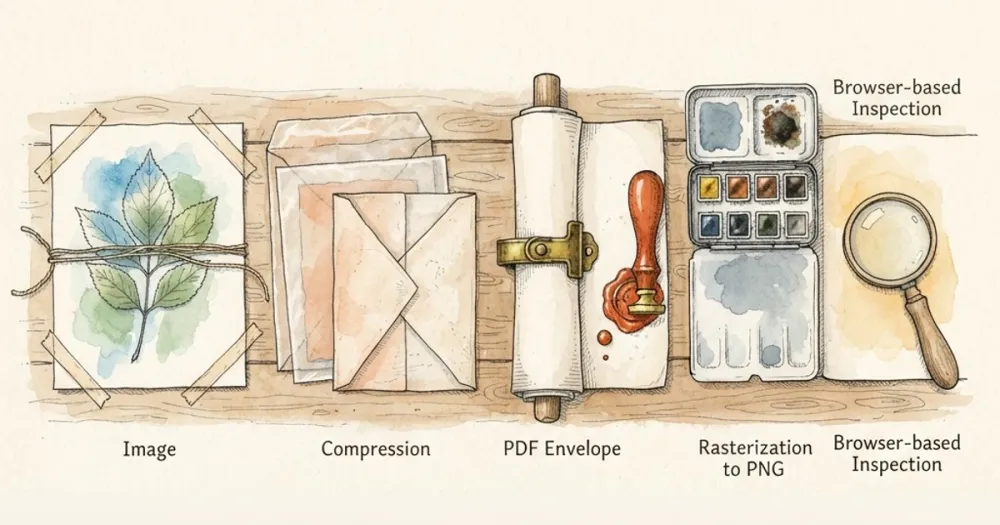
Converting between images and PDFs is one of those tasks where the free tools all want your file on their server. It is worth understanding what the conversion actually involves, because there is very little to it and no reason to upload anything.
What a PDF actually holds
A PDF is a container. Converting an image to PDF creates a document with one page and one XObject - the image - drawn to fill it.
The image data inside is compressed, almost always as a JPEG stream using the DCTDecode filter, because that is what keeps the file to a sensible size. A PNG's lossless data can be embedded with FlateDecode, but a photograph stored that way produces a PDF several times larger than anyone expects.
This has one consequence people are surprised by: converting a PNG to PDF is usually lossy, because the pixels are re-encoded as JPEG on the way in.
Free toolPNG to PDFTurn a PNG, JPG or screenshot into a PDF in your browser. No upload, no signup, no watermark - the file never leaves your device.Page size
The page is sized in points, at 72 to the inch. An image 1200 pixels wide becomes a page 1200 points wide - about 16.7 inches, which is larger than A4.
Most viewers scale to fit, so this is invisible on screen and appears when someone prints it. If the PDF is going to a printer, resize the image to match the target page first: A4 at 300 DPI is 2480 x 3508 pixels.
Transparency does not survive
PDF pages are opaque. Transparent regions of a PNG are composited against white during conversion.
If you need the alpha channel, keep the PNG. A logo destined for a document should be placed in the document, not converted into one.
Going the other way
Rasterising a PDF to PNG renders each page from its vector instructions at a resolution you pick. This is genuinely lossy in the sense that vector text becomes pixels, but it is the right move when you need to paste a page into a slide, crop a figure out of a paper, or hand a page to something that cannot read PDF.
Render at 2x the natural page size - roughly 144 DPI - for anything viewed on screen. Go to 3x or 4x if the result will be zoomed or printed. Below 1x, text goes soft immediately, because glyph rendering has almost no pixels to work with.
Use PNG rather than JPG for PDF pages. Pages are mostly flat colour and sharp text, which is exactly the case where JPEG produces visible halos around letters.
The round trip
Image to PDF to image never returns the original. The first conversion re-encodes as JPEG, the second rasterises at a resolution you chose rather than the source resolution. Text that was crisp is now resampled twice.
If you find yourself doing this to crop or annotate something, work on the original image instead.
Why local conversion matters here
The files people convert are payslips, invoices, contracts, identity documents and scanned forms. Those go to an upload endpoint, sit on a server for some retention period, and are governed by a privacy policy nobody reads.
There is no technical need for any of it. The browser can decode an image, assemble a PDF and rasterise a PDF entirely on your machine. Both converters here do exactly that - you can open the network tab and watch nothing leave.
Convert with the PNG to PDF converter or the PDF to PNG converter.